
0.规划

第零章 如何使用笔记📔
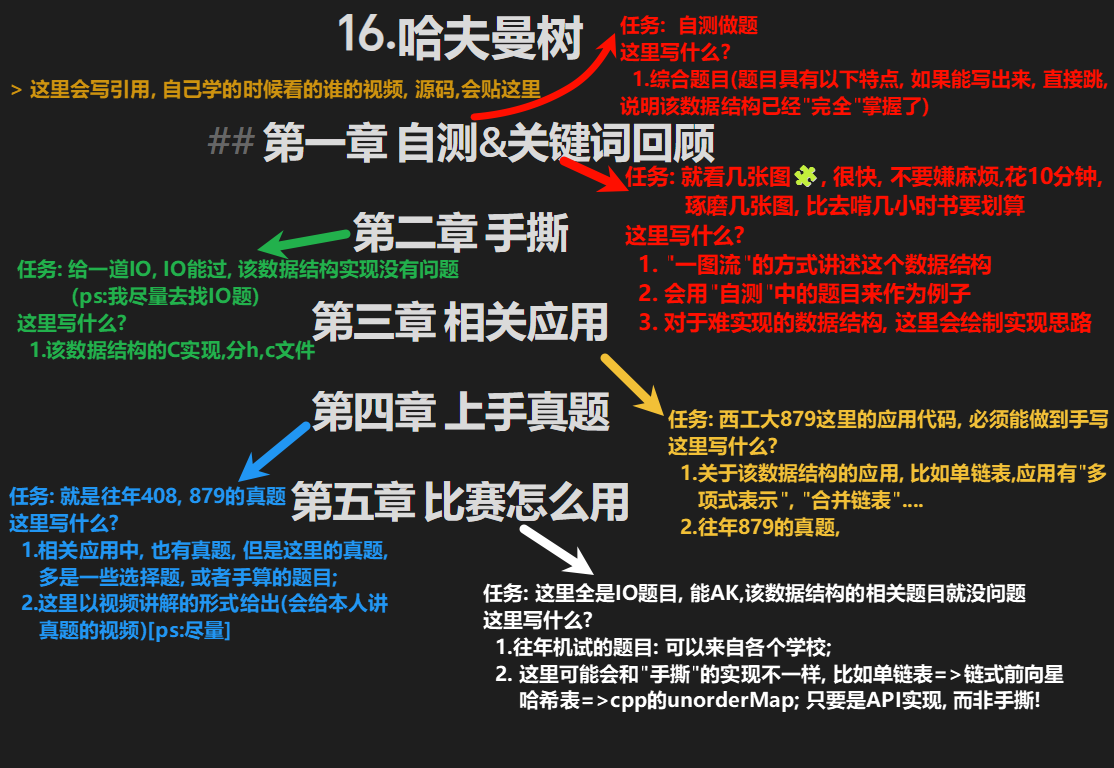
第一章 规划
| 英文名称 | 中文名称 | 应用(代表) | 难度 | 是否已经实现 |
|---|---|---|---|---|
| 一. Linner | 一.线性数据结构 | |||
| Linear List | 线性表 | 1分 | ✔️ | |
| Generalized List | 广义表 | 5分 | ✔️ | |
| Single Link List | 单链表 | 多项式表示 | 3分 | ✔️ |
| Double Link List | 双链表 | 3分 | ✔️ | |
| Loop Link List | 循环链表 | 约瑟夫环 | 3分 | ✔️ |
| KMP ➕ BF | 串的匹配算法 | 7分 | ✔️ | |
| Stack | 栈 | 表达式计算 | 3分 | ✔️ |
| Queue ➕Circular Queue | 队列 + 循环队列 | 4分 | ✔️ | |
| Deque | 双端队列 | 3分 | ❌ | |
| 二. Tree | 二.树 | |||
| Binary Tree( [Non]Recursive Traverse) ➕ Travel Tree(/Pre/In/Post/Level Thread) | 二叉树([非]递归实现) + 遍历 | 5分 | ✔️ | |
| Threaded Binary Tree(Pre/In/Post) | 线索二叉树(前中后) | 6分 | ✔️ | |
| Binary Search Tree | 二叉搜索树 | 6分 | ✔️ | |
| AVL Binary Tree | 自平衡二叉树 | 8分 | ✔️ | |
| Red-Black Tree | 红黑树 | 10分 | ✔️ | |
| B/B+ Tree | B/B+树 | 9分 | ||
| Huffman Tree | 哈夫曼树 | 5分 | ||
| Heap | 堆 | 7分 | ||
| 三. Graph | 三.图 | |||
| Graph ➕ BFS/DFS | 图的存储与遍历(深搜/广搜) | 5分 | ||
| Minimum Spanning Tree(Prim/Kruskal) | 最小生成树(普里姆/克鲁斯卡尔) | 6分 | ||
| Short Path Algorithms(Dijkstra/Floyd) | 最短路算法(迪杰斯特拉/弗洛伊德) | 7分 | ||
| TopLogicalSort ➕ Critical Path | 拓扑排序 + 关键路径 | 6分 | ||
| 四. Search | 四.查找 | |||
| Hash | 哈希 | 6分 | ||
| Union Find | 并查集 | 6分 | ||
| 五.Sort | 五.排序 | |||
| Insertion Sort (Straight Insertion/Binary Insertion/Shell) | 插入排序(直接/折半/希尔) | 2分 | ||
| Swapping Sort (Bubble / Quick ) | 交换排序(冒泡/快排) | 3分 | ||
| Selection Sort ➕Merge Sort ➕Counting Sort➕Radix Sort | 选择排序 / 归并 /计数 /基数 | 3分 | ||
| Outer Sort | 外部排序 | 4分 |
第二章 vscode使用
我依稀记得, 这应该是我第4次配vscode了(vscode配置C/C++的环境)
STEP1: 下载MinGW
- 官网下载: https://www.mingw-w64.org 【下好去bin目录看下 有没有gcc.exe(运行c的) g++.exe(运行c++的) gdb(调试c,c++的)】
- 解压+配置环境变量(把最后的
\加上, 否则下一步检测不到):

STEP2: 下载插件
STEP3: 配置.vscode文件夹中的配置文件
第一个插件的配置 ①可以将C/C++的版本设置为比赛用的版本
{
    "configurations": [
        {
            "name": "Win32",
            "includePath": [
                "${workspaceFolder}/**"
            ],
            "defines": [
                "_DEBUG",
                "UNICODE",
                "_UNICODE"
            ],
            "windowsSdkVersion": "10.0.22621.0",
            "compilerPath": "D:/mingw64/bin/gcc.exe",
            "cStandard": "c99",
            "cppStandard": "c++11",
            "intelliSenseMode": "windows-gcc-x64"
        }
    ],
    "version": 4
}
调试用的 ①任意C/C++文件右上角都有一个齿轮,点击可以自动生成 ②externalConsole: 是否用系统的终端进行调试(只有调试模式下生效, 运行只能在vscode的终端)
{
    "configurations": [
        {
            "name": "C调试",
            "type": "cppdbg",
            "request": "launch",
            "program": "${fileDirname}/output.exe",
            "args": [],
            "stopAtEntry": false,
            "cwd": "${fileDirname}",
            "environment": [],
            "externalConsole": true,
            "MIMode": "gdb",
            "miDebuggerPath": "D:\\mingw64\\bin\\gdb.exe",
            "setupCommands": [
                {
                    "description": "Enable pretty-printing for gdb",
                    "text": "-enable-pretty-printing",
                    "ignoreFailures": true
                },
                {
                    "description": "Set Disassembly Flavor to Intel",
                    "text": "-gdb-set disassembly-flavor intel",
                    "ignoreFailures": true
                }
            ],
            "preLaunchTask": "gcc"
        },
        {
            "name": "C++调试",
            "type": "cppdbg",
            "request": "launch",
            "program": "${fileDirname}/output.exe",
            "args": [],
            "stopAtEntry": false,
            "cwd": "${fileDirname}",
            "environment": [],
            "externalConsole": true, // 是否使用系统控制台进行调试
            "MIMode": "gdb",
            "miDebuggerPath": "D:\\mingw64\\bin\\gdb.exe",
            "setupCommands": [
                {
                    "description": "Enable pretty-printing for gdb",
                    "text": "-enable-pretty-printing",
                    "ignoreFailures": true
                },
                {
                    "description": "Set Disassembly Flavor to Intel",
                    "text": "-gdb-set disassembly-flavor intel",
                    "ignoreFailures": true
                }
            ],
            "preLaunchTask": "g++" // 就改一个地方
        }
    ],
    "version": "2.0.0"
}
第四个插件的配置文件: ①配置了格式化 ②多个文件运行! ③配置了默认vscode终端编码为UTF-8(chcp65001)和vscode默认编码保持一致 ④去设置搜索”Run In Terminal”勾选(要下载第四个插件)
注意如果你要改格式化的相关配置, 请在这里修改 格式化配置参考
{
    "C_Cpp.clang_format_style": "{BasedOnStyle: LLVM, BreakBeforeBraces: Attach, AlignTrailingComments: true, ReflowComments: true, SpacesBeforeTrailingComments: 2, IndentWidth: 4, TabWidth: 4, UseTab: Never, ColumnLimit: 100, AllowShortIfStatementsOnASingleLine: true, AllowShortBlocksOnASingleLine: Always, AllowShortLoopsOnASingleLine: true, AllowShortCaseLabelsOnASingleLine: true, AllowShortFunctionsOnASingleLine: All, IndentCaseLabels: true, PointerAlignment: Right}",
    "C_Cpp.clang_format_fallbackStyle": "LLVM",
    "editor.formatOnSave": true, // 保存时自动格式化
    "editor.defaultFormatter": "ms-vscode.cpptools",
    // 使用C/C++扩展的格式化工具
    "[jsonc]": {
        "editor.defaultFormatter": "vscode.json-language-features"
    },
    // 配置多文件运行
    "code-runner.executorMap": {
        // 单个文件
        //"c": "cd $dir && gcc $fileName -o $fileNameWithoutExt && $dir$fileNameWithoutExt",
        // "cpp": "cd $dir && g++ $fileName -o $fileNameWithoutExt && $dir$fileNameWithoutExt",
        // 多个文件
        "c": "chcp 65001 && cd $dirWithoutTrailingSlash && gcc *.c -o output && .\\output.exe",
        "cpp": "chcp 65001 && cd $dirWithoutTrailingSlash && g++ *.cpp -o output && .\\output.exe"
    },
    "files.associations": {
        "header.h": "c",
        "generallist.h": "c",
        "random": "c",
        "bit": "cpp",
        "compare": "cpp",
        "concepts": "cpp",
        "type_traits": "cpp",
        "cmath": "cpp",
        "limits": "cpp",
        "new": "cpp",
        "array": "c",
        "string": "c",
        "string_view": "c",
        "span": "c",
        "polynomial.h": "c",
        "time.h": "c",
        "assert.h": "c"
    },
    "C_Cpp.errorSquiggles": "enabled",
    "code-runner.terminalRoot": "",
    "code-runner.runInTerminal": true,
    "code-runner.saveFileBeforeRun": true
}
运行配置文件: 运行时的指令相关的
{
	"version": "2.0.0",
	"tasks": [
		{
			"type": "cppbuild", //
			"label": "gcc", // C运行
			"command": "D:/mingw64/bin/gcc.exe",
			"args": [
				"-fdiagnostics-color=always",
				"-g",
				// "${file}",
				"${fileDirname}\\*.c",
				"-o",
				"output.exe"
			],
			"detail": "compiler: D:/mingw64/bin/gcc.exe",
			"options": {
				"cwd": "${fileDirname}",
				"shell": true
			},
			"problemMatcher": [
				"$gcc"
			],
			"group": {
				"kind": "build",
				"isDefault": true
			},
		},
		{
			"type": "cppbuild",
			"label": "g++", // C++运行
			"command": "D:/mingw64/bin/g++.exe", // 使用g++编译器
			"args": [
				"-fdiagnostics-color=always",
				"-g",
				// "${file}",
				"${fileDirname}\\*.cpp",
				"-std=c++11", // 添加C++标准参数
				"-o",
				"output.exe"
			],
			"detail": "compiler: D:/mingw64/bin/g++.exe",
			"options": {
				"cwd": "${fileDirname}",
				"shell": true
			},
			"problemMatcher": [ // 错误输出
				"$gcc"
			],
			"group": {
				"kind": "build",
				"isDefault": true
			},
		},
		{
			"type": "shell",
			"label": "gcc-utf8",
			"command": "chcp 65001 && D:/mingw64/bin/gcc.exe",
			"args": [
				"-fdiagnostics-color=always",
				"-g",
				"*.c",
				"-o",
				"output.exe"
			],
			"options": {
				"cwd": "${fileDirname}",
				"shell": true
			},
			"problemMatcher": [
				"$gcc"
			],
			"group": {
				"kind": "build",
				"isDefault": true
			}
		},
		{
			"type": "shell",
			"label": "g++-utf8",
			"command": "chcp 65001 && D:/mingw64/bin/g++.exe",
			"args": [
				"-fdiagnostics-color=always",
				"-g",
				"*.cpp",
				"-std=c++11",
				"-o",
				"output.exe"
			],
			"options": {
				"cwd": "${fileDirname}",
				"shell": true
			},
			"problemMatcher": [
				"$gcc"
			],
			"group": {
				"kind": "build",
				"isDefault": false
			}
		}
	]
}
STEP4: 常见问题
调试不了?
①检测gdb.exe文件位置是否正确 ②报错的文件路径中, 不能有中文(“用户”, “文档”这样的都不行, 极其严格)
调试时scanf()没法输入??
参考文章: https://blog.csdn.net/weixin_48485807/article/details/129997680
控制台乱码?
vscode运行后弹出的cmd中输入以下命令, 临时改变cmd的编码为utf-8;
参考文章: https://www.cnblogs.com/luckyang/p/18269484
chcp 65001
命令面板没法快捷键打开?
把PicList的快捷键关了, vscode的命令面板(ctrl+shift+p)冲突了
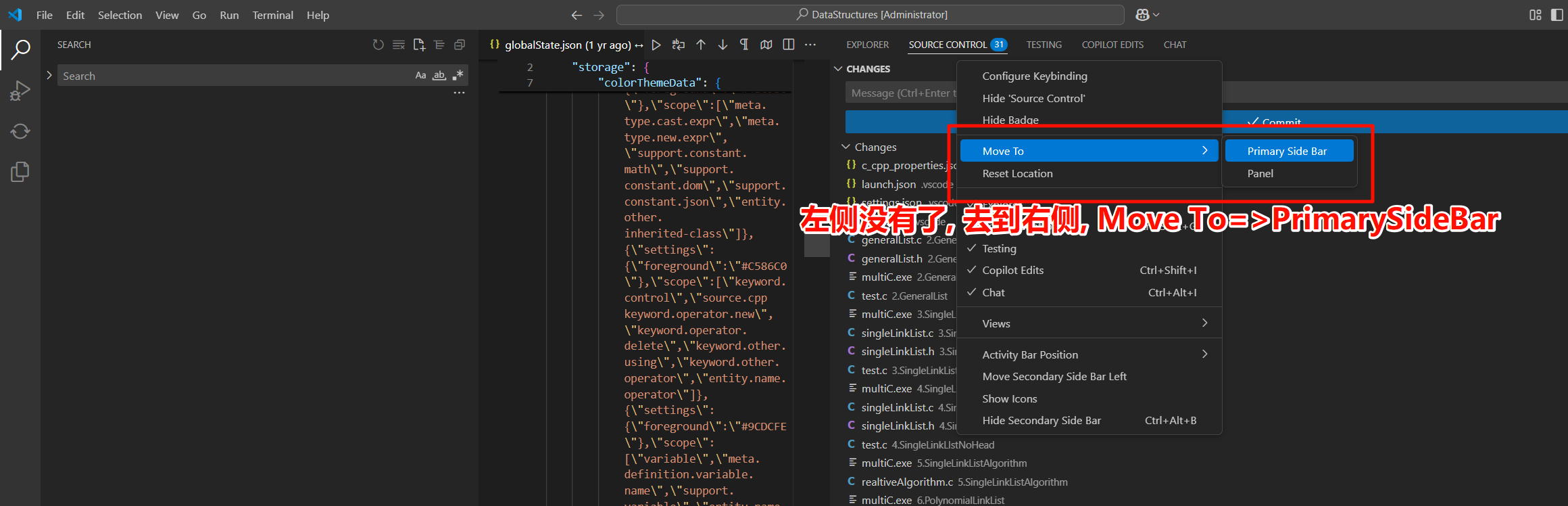
左侧东西没了?
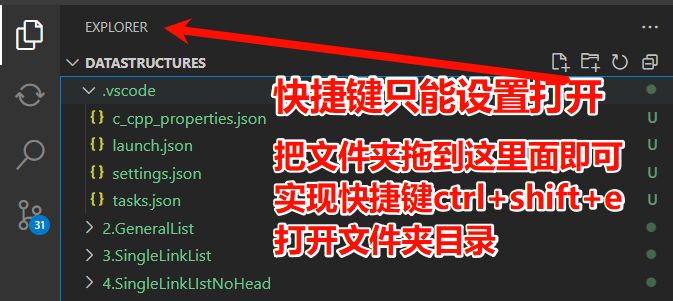
快捷键打开文件夹?
第三章 C语言基础
第一节 一级指针与二级指针
3.1.1 “修改A”与”修改A中的变量”的区别
- 修改A本身(需要二级指针):
- 当A是二级指针时:
*A = ...; - 这种操作改变了A指向的地址
- 当A是二级指针时:
- 修改A指向的结构体中的成员(使用一级指针即可):
- 当A是二级指针时:
(*A)->rchild = ...; - 当A是一级指针时:
A->rchild = ...; - 这两种操作等价,只是修改结构体内部的值
- 所以, 为了避免不必要的麻烦, 我们严格规定,如果只修改”A指向的结构体中的成员”; 不允许传递二级指针
- 当A是二级指针时:
3.1.2 指针赋值的效力
- 二级指针的赋值:
TreeNode **A;
TreeNode **p = A;  // p与A等价,都是二级指针
- p可以用来修改A本身或A中的变量
- 一级指针的获取方式:
TreeNode **A;
TreeNode *p = *A;  // 从二级指针获取一级指针
或
TreeNode *A;
TreeNode *p = A;   // 直接复制一级指针
- 这两种情况中p都只能用来修改指向结构体的成员
- Title: 0.规划
- Author: 明廷盛
- Created at : 2026-02-12 01:17:04
- Updated at : 2025-03-23 16:59:00
- Link: https://blog.20040424.xyz/2026/02/12/🏫考研/第一部分 数据结构/0.写在前面/
- License: All Rights Reserved © 明廷盛